Create and Update Payers
You can create and update payer contact information in the SFS. A payer account is used by a student or Authorized User to view, pay, and manage their bill.
 Who can create or edit a user?
You must have the correct permissions manually create a new user or update a student's personal information.
If you want to create a user but do not see the option, the permission is controlled with the Ability to manually create a new user (payer) permission on the Edit User page.
If you want to edit a user's ID, date of birth, first or last name, the permission is controlled with the Ability to update a student's ID, Date of Birth, First and Last Name permission on the Edit User page.
If you need access, please contact the Flywire administrator at your institution or contact Flywire Support at [email protected].
Create a new payer
You can create an SFS account for a payer, such as a student or Authorized User.
Finding the page
-
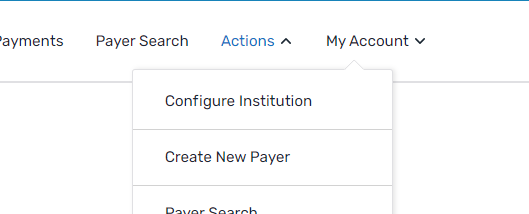
Select the Actions menu and click Create New Payer.
-
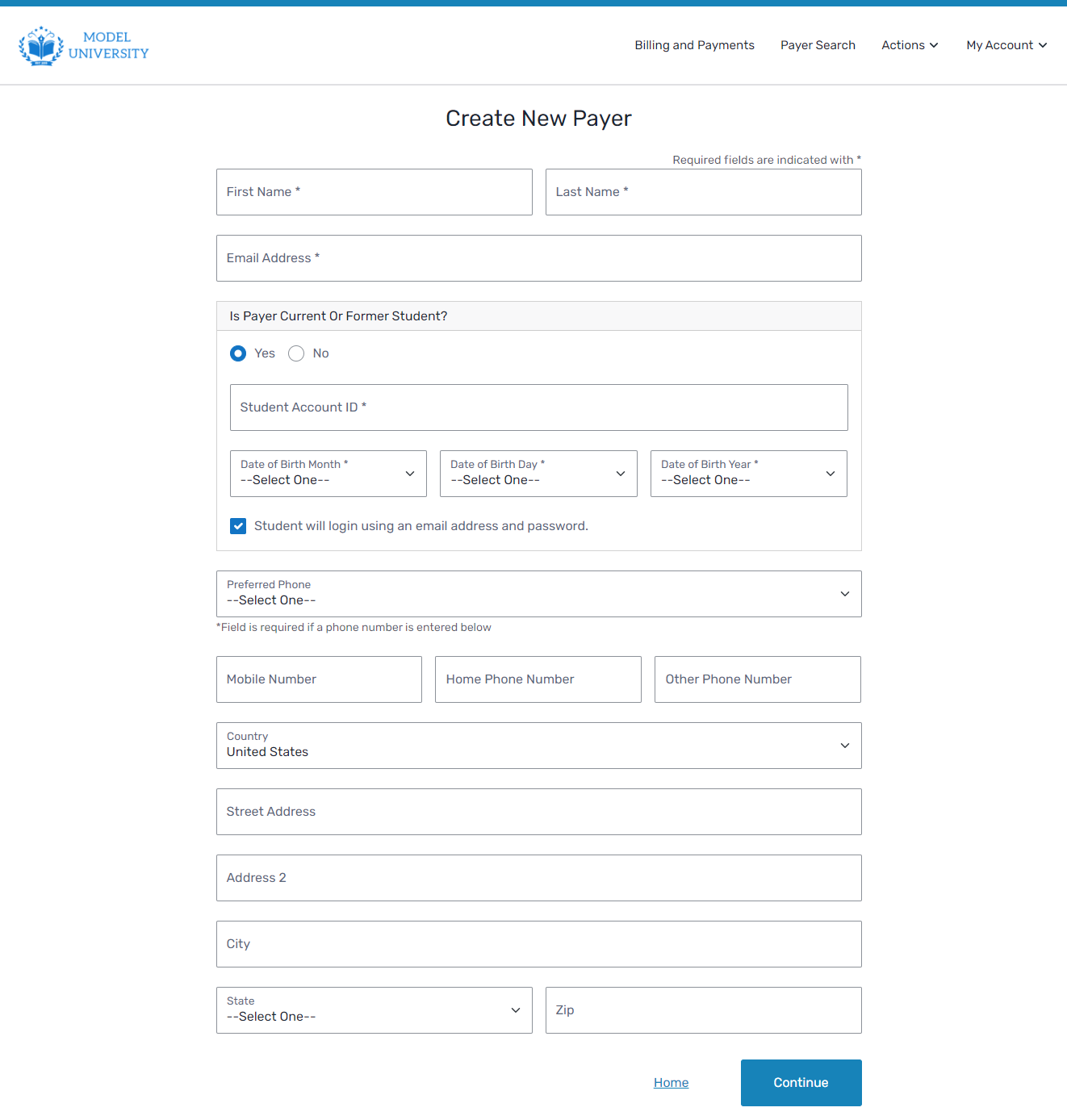
On the Create New Payer page, enter the payer's information.
-
Click Continue.
-
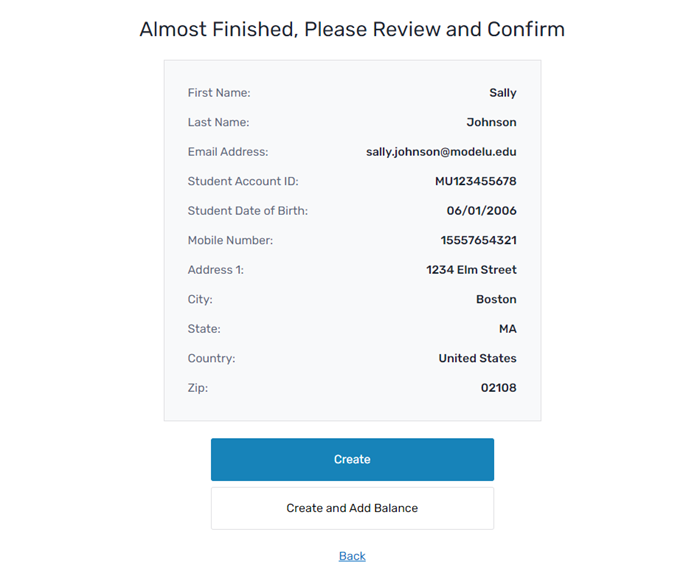
Review the payer's details and click Create.
On the Page
|
|
|
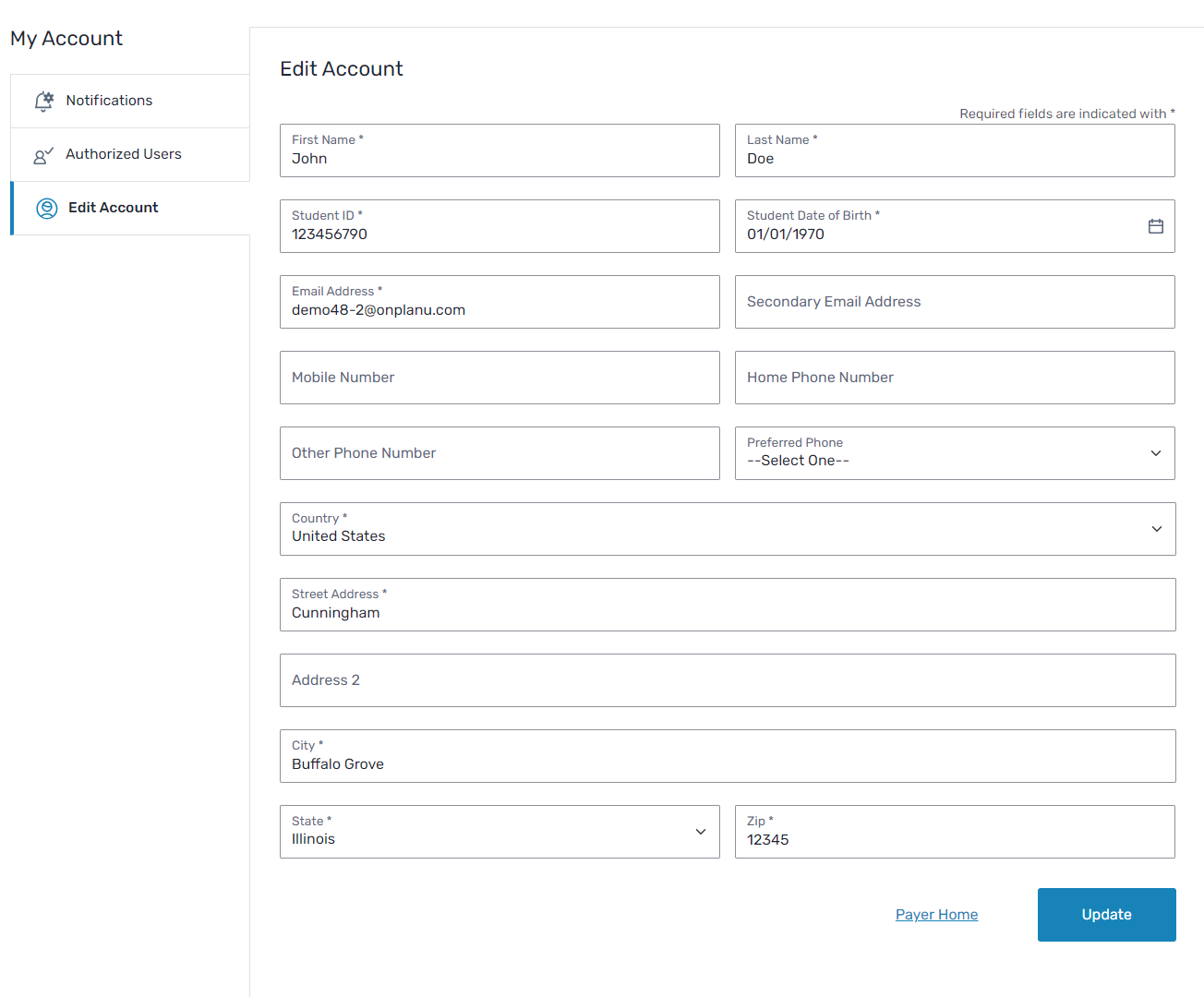
Update Payer Contact Information
You can update any part of a payer's contact information.
Finding the Page
-
Search for the payer using the Payer Search function.
How to search for a user
-
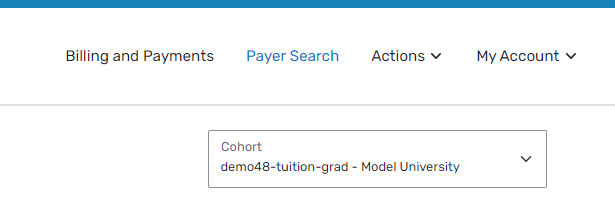
Click Payer Search in the SFS title bar.
-
Enter information in at least one field to search for a payer.
-
Click Search.
Search results are limited to 200 payers.
-
Select the payer from the list of results.
Search criteria
You can search for payers using the following criteria.
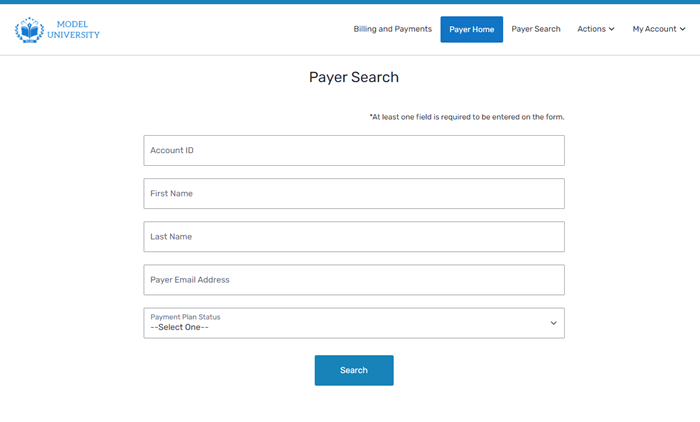
Account ID The Account ID is an identification code you use for the payer in your student information system (SIS).
First Name The payer's first name.
Last Name
The payer's last name.
Payer Email Address
The payer's email address.
Payment Plan Status The status of the payment plan.
Payment Plan Status
The status of any payment plan will be one of the following:
Active
The payer has provided payment (credit card or bank account) information, accepted the terms, and has not defaulted.
Cancelled
Your institution has rescinded the payment plan and the remaining account balance is due in full.
Completed
The payer has paid the balance in full outside of the payment plan system. Completed plans cannot be re-activated.
Defaulted
The payer has missed a number (established by your institution at implementation) of installment payments.
Offered
The payer has not yet entered payment information (credit card or bank account) and accepted payment plan terms.
Paid in Full The payer has paid the entire balance. -
-
Select the payer from the list of results.
-
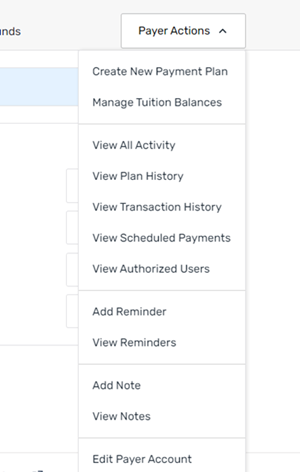
Select the Payer Actions menu list and click Edit Payer Account.
-
On the Edit Account page, update the appropriate field(s).
-
Click Save Account.
On the Page
|
|
|