Bad Email Addresses Report
You can generate a list of payers that did not receive intended email notifications due to invalid email addresses.
Invalid email addresses occur when:
-
Emails bounce back because the email address is closed or invalid
-
Emails have been blocked
-
Emails have been marked as spam
 Who can access the report?
You must have the Access to the Bad Email Addresses Report permission or the reports superuser permission to be able to generate the report.
If you need access, please contact the Flywire administrator at your institution or contact Flywire Support at [email protected].
Reports superuser
A user is considered a reports superuser when they are given the Ability to review all reports permission. The superuser permission includes the following individual permissions:
-
Ability to access Communication Campaign Report
-
Ability to download PDFs from S3
-
Ability to view a report of staff notes
-
Access to Account Reconciliation Summary Report
-
Access to Authorized User Report
-
Access to Cash Flow Report
-
Access to Mobile/Email Updates Report
-
Access to Payment Plan Rebalance Report
-
Access to Payment Plan Summary Report
-
Access to Payment Summary Report
-
Access to Recently Defaulted Payments Plans Report
-
Access to Soon To Default Payment Plans Report
-
Access to User Access Report
-
Access to Users Viewing Offers, Not Completing Report
-
Access to the Bad Email Addresses Report
-
Access to the eRefund Enrollment Report
-
Access to the eRefund Status Report
-
Access to the Financial Responsibility Agreement Report
-
Access to the Payment Plan Installment Report
Running the Report
-
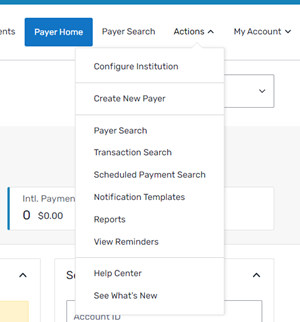
Select the Actions menu and click Reports.
-
On the Report List page, click the Bad Email Addresses Report link.
-
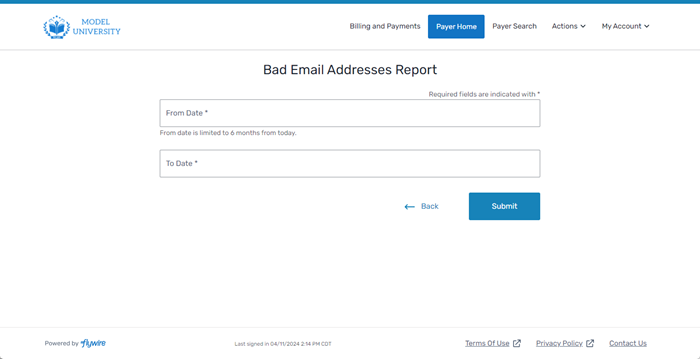
On the Bad Email Addresses Report page, enter the dates you want to include in the report.
-
Select a start date from the From Date field.
-
Select an end date from the To Date field.
-
-
Click Submit. A .csv file of bad email addresses is automatically downloaded.