Payment Plan Summary Report
The Payment Plan Summary report lets you filter payment plans based on your institutions and term setup. You can see a summary of all active, paused, cancelled and expired plans and offers, as well as detail on each.
 Who can access the report?
You must have the Access to Payment Plan Summary Report permission or the reports superuser permission to be able to generate the report.
If you need access, please contact the Flywire administrator at your institution or contact Flywire Support at [email protected].
Reports superuser
A user is considered a reports superuser when they are given the Ability to review all reports permission. The superuser permission includes the following individual permissions:
-
Ability to access Communication Campaign Report
-
Ability to download PDFs from S3
-
Ability to view a report of staff notes
-
Access to Account Reconciliation Summary Report
-
Access to Authorized User Report
-
Access to Cash Flow Report
-
Access to Mobile/Email Updates Report
-
Access to Payment Plan Rebalance Report
-
Access to Payment Plan Summary Report
-
Access to Payment Summary Report
-
Access to Recently Defaulted Payments Plans Report
-
Access to Soon To Default Payment Plans Report
-
Access to User Access Report
-
Access to Users Viewing Offers, Not Completing Report
-
Access to the Bad Email Addresses Report
-
Access to the eRefund Enrollment Report
-
Access to the eRefund Status Report
-
Access to the Financial Responsibility Agreement Report
-
Access to the Payment Plan Installment Report
Running the Report
-
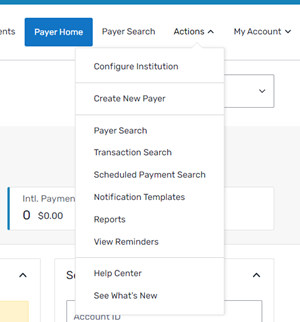
Select the Actions menu and click Reports.
-
On the Report List page, click the Payment Plan Summary link.
-
On the Payment Plan Summary page, complete the required fields.
-
Select which institutions to include in the report.
-
Select which academic term to use to populate the report.
-
In the Minimum Balance field, enter the minimum amount to include plans or offers in the report.
-
In the Maximum Balance field, enter the maximum amount to include plans or offers in the report.

-
-
Click Submit. A page displays with the report.
-
On the Payment Plan Summary Results page, you can:
-
Click Export To Excel to generate a spreadsheet of the summary page or the selected category.
-
Click a link in the Status column to view a list of payers, amounts, and other details.
-