Payment Summary Report
You can use the payment summary report to view transactions based on a set of criteria you select. For example, you can view all transactions for a specific time period, view all the transactions using a specific payment method (for example, Visa or ACH), or view all transactions in a specific status (for example, failed or returned).
You can run a payment summary report ad hoc (as needed) or using a set of saved criteria.
-
When you run an ad hoc report, you are defining the criteria when you run the report.
-
When you run a saved criteria report, the criteria was defined when the report was saved.
 Who can access the report?
You must have the Access to Payment Summary Report permission or the reports superuser permission to be able to generate the report.
If you need access, please contact the Flywire administrator at your institution or contact Flywire Support at [email protected].
Reports superuser
A user is considered a reports superuser when they are given the Ability to review all reports permission. The superuser permission includes the following individual permissions:
-
Ability to access Communication Campaign Report
-
Ability to download PDFs from S3
-
Ability to view a report of staff notes
-
Access to Account Reconciliation Summary Report
-
Access to Authorized User Report
-
Access to Cash Flow Report
-
Access to Mobile/Email Updates Report
-
Access to Payment Plan Rebalance Report
-
Access to Payment Plan Summary Report
-
Access to Payment Summary Report
-
Access to Recently Defaulted Payments Plans Report
-
Access to Soon To Default Payment Plans Report
-
Access to User Access Report
-
Access to Users Viewing Offers, Not Completing Report
-
Access to the Bad Email Addresses Report
-
Access to the eRefund Enrollment Report
-
Access to the eRefund Status Report
-
Access to the Financial Responsibility Agreement Report
-
Access to the Payment Plan Installment Report
Finding the report
-
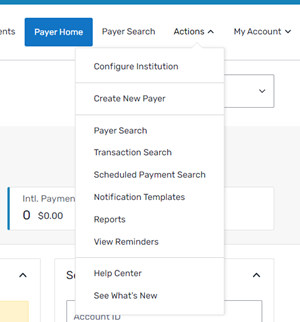
Select the Actions menu and click Reports.
-
On the Report List page:
-
Click the Run Ad Hoc link to run a new report.
-
Click a report name under Payment Summary Saved Criteria to run a saved criteria report.
-
Click Create a Saved Criteria link to create a new saved criteria report.
-
Running a report
-
Complete the fields to set your report criteria.
-
Click Submit.
-
On the Payment Summary Results page, you can click any heading in the first column to view individual transactions in that category.

-
On the Transaction Search Results page, you can:
-
Click the blue plus to expand the transaction result to see additional details.
-
Click a transaction ID to view transaction details for an individual transaction.
-
Click the payer's name to view their account summary.

-
On the page
The fields are the same between the Add Payment Summary Report Saved Criteria page and the ad hoc Payment Summary Report page, but they are presented in a different order.
|
|

Payment Summary Report page only
| From Date |
Select the dates you want to use to populate the report.
|
| To Date |
Add Payment Summary Report Saved Criteria page only
| Saved Criteria Name | Add a name for the report. This name will display for you to access and reuse this report. |
| Relative Date |
Select the date criteria to use in the report. When the report is run, the date will be populated based on this option. The relative date options are:
All criteria settings work the same way as they do when the report is run ad hoc, except for the date criteria. Instead of choosing an absolute date, you must choose a relative date setting. |
| Send an email summary |
Select if you want the report to be an automated email summary. The frequency of the summary email is based on the selection in the Relative Date field:
For security reasons, emails can only be sent to the domain matching your log in. |