Payer Home (Collection Management)
The Payer Home page provides an overview of the payer's account. The Payer Home contains different information based on whether the student is part of the Billing and Payments or Collection Management modules.
For a student in Collection Management, the Payer Home page includes the student's Payer Timeline, any active offers or payments plans, their account information, and collector information such as notes and reminders.
Payer Overview
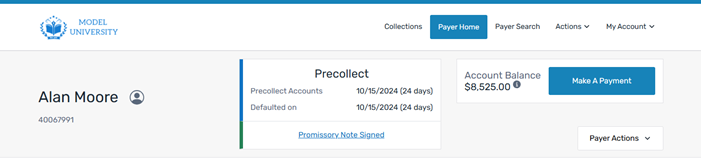
The top of the page includes the payer's name and student ID, a summary of their collections status, and the total account balance.
The payer overview includes the date when the student was assigned to the current status and how long its been since they entered that status. It also includes the Defaulted On date, which is the date the student's account first entered the collections cycle and how long they have been in Collection Management.
Payer Timeline
The payer timeline is a visual representation of the payer's journey through their current collection phase. The timeline displays a summary of pending and completed actions, scheduled communications, offer expiration dates, and automatic moves from Collection Management. Managers and collectors can easily see a timeline of scheduled collection activities and quickly take action on priority work items.
The payer timeline only covers the current phase the student is in (precollect, internal collections, etc) and only shows actions/events for that phase.

Timeline Event
|
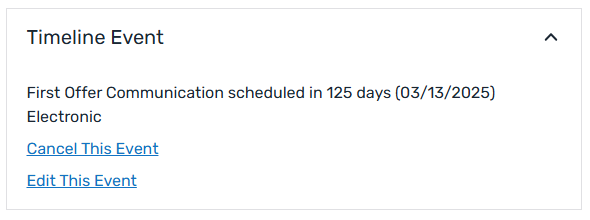
The Timeline Event box displays information about the next event in the payer timeline. You can see when the event will happen and additional information such a method of communication or the action text. If you can interact with the event, such as edit, cancel, or complete it, you can do that in the Timeline Event box. |
|
Account Information
|
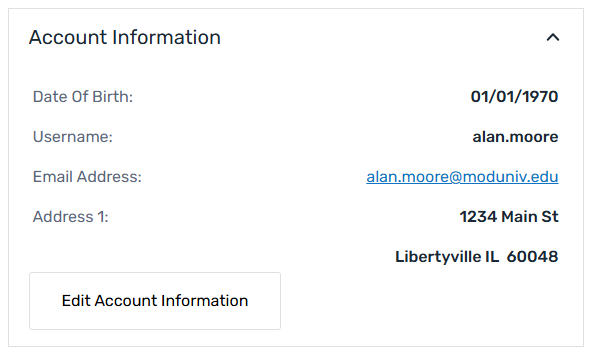
The Account Information box displays the student's account information, such as date of birth and address. |
|
Authorized Users
|
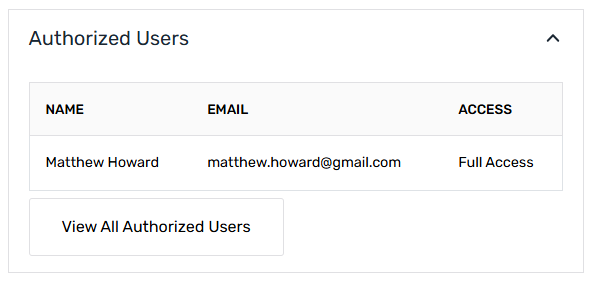
The Authorized Users box displays a list of the Authorized Users who have been granted access to the student's account. You can click the View All Authorized Users button to open the Authorized Users tab for the student's account.  What is an Authorized User? What is an Authorized User?
An Authorized User is an individual that a student has allowed to access their account. An Authorized User can be any person, such as a parent, grandparent, spouse or employer. There is no limit to the number of Authorized Users a student can add to their account. For an overview of Authorized User functionality, see Authorized Users. |
|
Notes
|
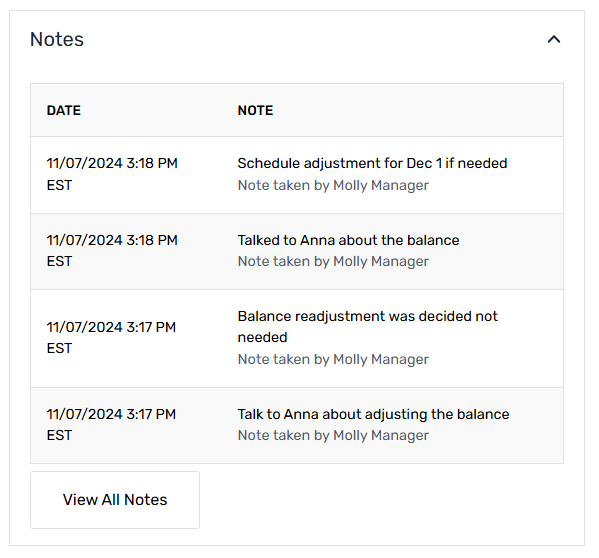
The Notes box displays the last 5 notes a student's account. You can click the View All Notes button to open the Notes page for the student. What are notes?
Notes are additional explanations or detail about an action taken on an account. The notes associated with a payer's account can provide additional insight in the account history, including the steps taken to accommodate the payer's needs and circumstances. |
|
Payment Plan Offers
|
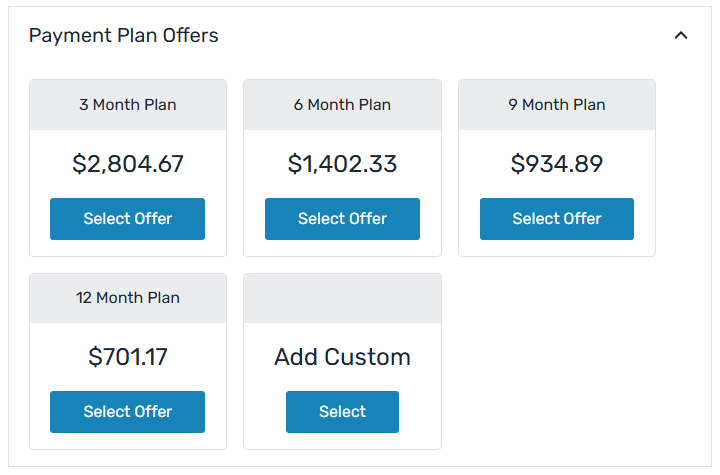
The Payment Plan Offers box displays the offers available for the student. You can select an existing offer or add a custom offer for the student. If the student has enrolled in a payment plan, this box is replaced by the Payment Plan Details box. |
|
Payment Plan Details
|
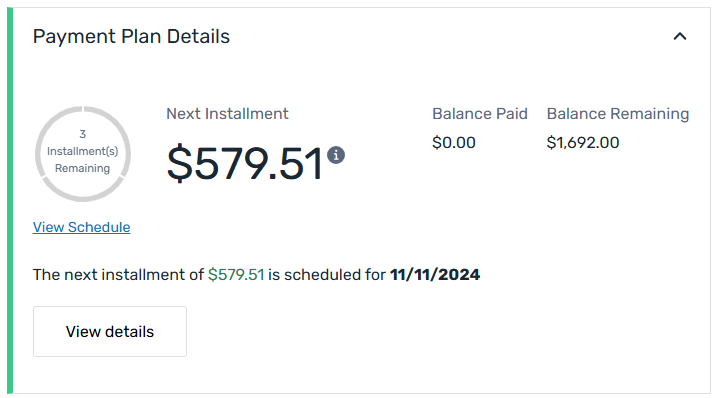
The Payment Plan Details box displays if a student has enrolled in a payment plan. It displays the installment information, installment schedule, and total balance remaining. If the student has not enrolled in a payment plan, this box is replaced by the Payment Plan Offers box. |
|
Upcoming Reminders
|
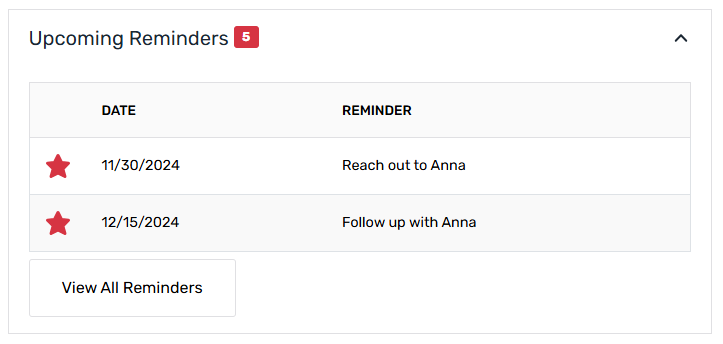
The Upcoming Reminders box displays the next 5 reminders on a student's account. You can click the View All Reminders button to open the Reminders page for the student. What are reminders?
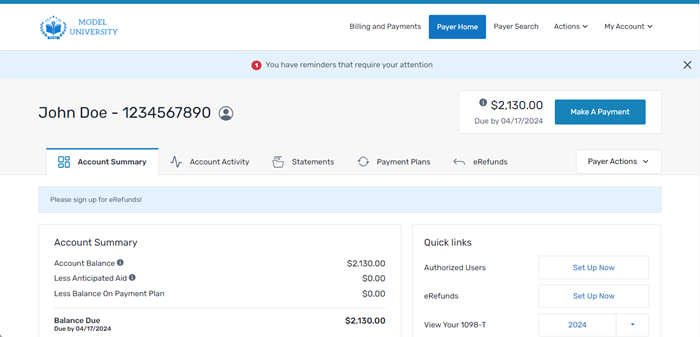
A reminder is a notification you can add to a payer's account for you to take action at a later date. The reminder displays as a blue banner with a notification that you have reminders that require your attention. This banner displays below the SFS title bar.
When you click a reminder, the SFS opens the Reminders page where you can view, edit, mark as complete, or delete your reminders. |
|
Transactions
|
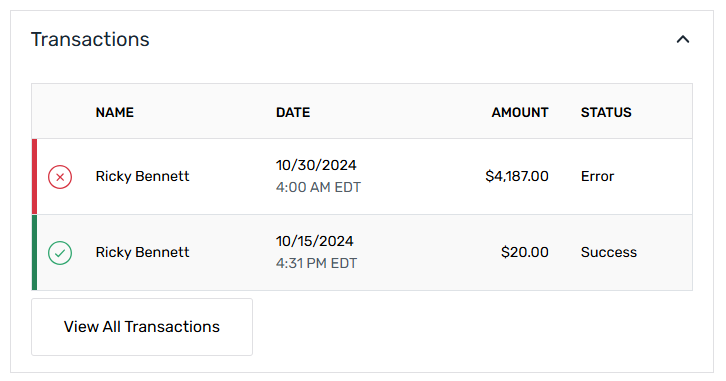
The Transactions box displays the recent transactions on the student's account. Successful and failed transactions are listed in the box. You can click the View All Transactions button to open the Transaction History tab for the student. |
|
Recent Activity
|
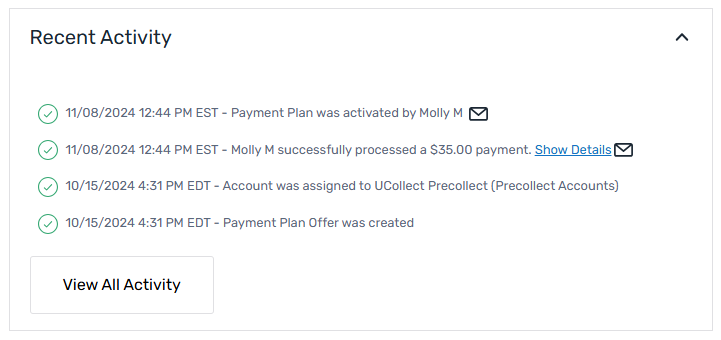
The Recent Activity box displays all recent activity on the student's account. The activity includes your activity and the activity from other users in your institution. It also includes automated SFS activity like offer creation and automatic placement. You can click the View All Activity button to open the All Activity tab for the student. |
|